Home › Guides › Backups for a small business: the 3-2-1 rule, tested
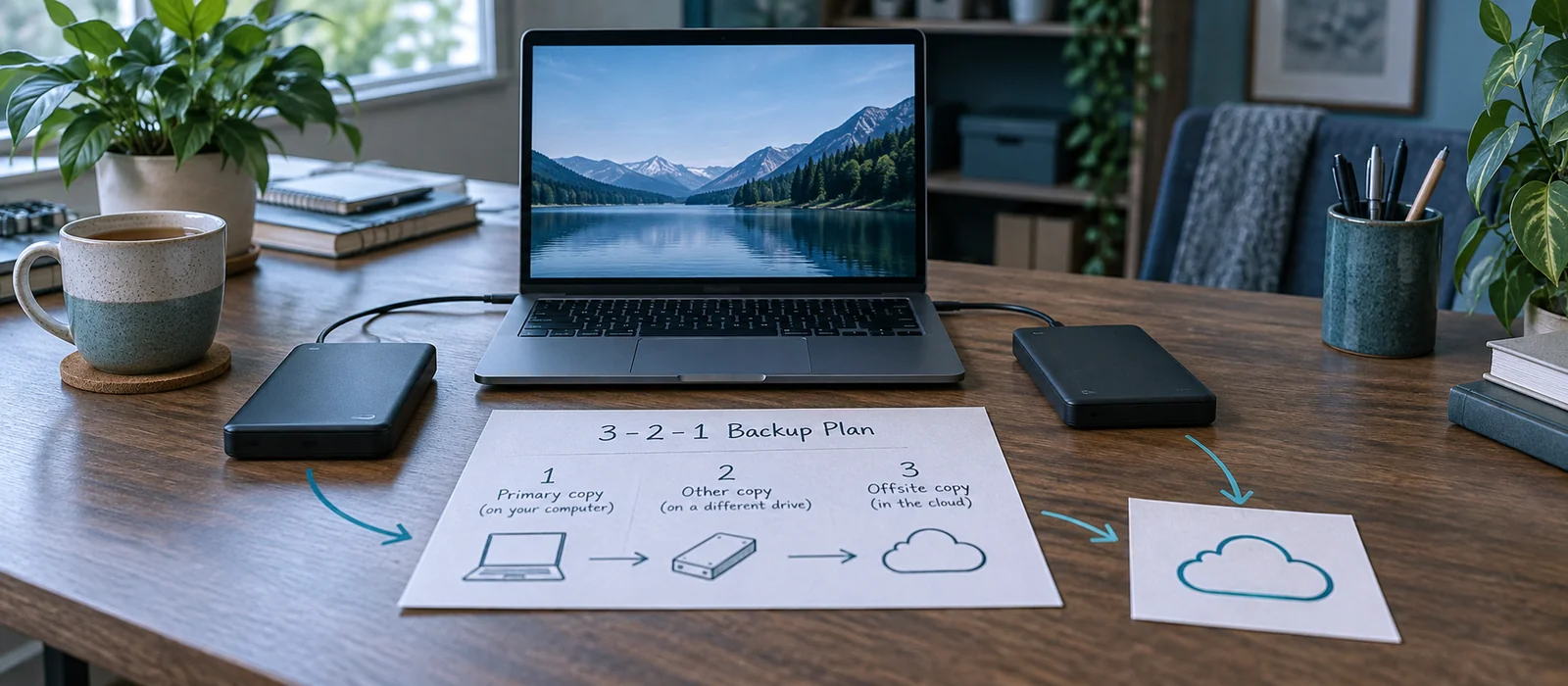
Most small businesses don’t think about backups until something goes wrong. A broken hard drive, a security breach, or ransomware hitting your computer files—suddenly you realise your business data exists nowhere else. The 3-2-1 rule is the industry standard for preventing this scenario, and it’s simple enough for any business to follow.
What is the 3-2-1 backup rule?
The rule is straightforward: maintain at least 3 copies of your data, on 2 different types of storage, with 1 copy stored offsite. This means if one backup fails or gets corrupted, the others keep your business running. The approach works because it protects against several types of failure at once—a broken device, a compromised cloud account, or a fire destroying your office.
Why three copies?
A single backup is not a backup; it’s a copy. If your main files and that one backup both get hit by ransomware at the same time, you’ve lost everything. With three copies, even if one becomes unusable, you have two more. The rule assumes that the likelihood of two independent backups failing simultaneously is far lower than either one failing alone.
Why two different storage types?
Using two different storage types protects against shared failure modes. If all your copies are on external hard drives, a power surge could destroy them all at once. Mixing storage types—for example, one backup on an external drive and one on a cloud service—means a single event is unlikely to wipe out both. Cloud storage fails independently from physical devices in your office, so combining them is sensible.
Why one offsite?
Keeping one backup away from your office protects against physical disasters: fire, flood, theft, or break-in. If your building is damaged and you lose your computer and all onsite backups, an offsite copy means your business can recover. Cloud services count as offsite, as do backups held at another location.
How to implement 3-2-1 for a small business
A practical setup might look like this:
- Copy 1 (main file system): Your working files on a desktop or laptop
- Copy 2 (onsite external drive): An external hard drive you plug in weekly
- Copy 3 (cloud backup): A cloud storage service with automatic or manual uploads
Alternatively, if all your work files sit in a cloud service already (such as Nextcloud or OneDrive), those three copies might include the cloud version, plus two local backups on different drives. The specific tools matter less than following the principle: spread your copies across different storage types and locations.
Backing up cloud services: Microsoft 365 and Google Workspace
Many small businesses now work entirely in cloud services: email and documents in Microsoft 365, or Gmail and Google Drive in Google Workspace. If you use these services, remember that cloud storage is not the same as backup. Microsoft and Google provide data availability and some recovery options, but they do not provide complete protection against ransomware, accidental deletion, or account compromise.
For Microsoft 365, configure your retention policies and recycle bin settings so deleted items are retained for at least 30 days. Test that you can recover deleted emails and OneDrive files from the recycle bin. For Google Workspace, enable the Trash retention setting so deleted items are kept for at least 30 days, and test recovery from Trash.
However, retention settings alone are not enough backup. For critical business data, consider a separate cloud backup tool that regularly backs up your Microsoft 365 or Google Workspace data to independent storage (such as AWS or a dedicated backup provider). This protects against ransomware that encrypts your cloud account, account compromise by an attacker, or deliberate data destruction. A separate cloud backup means you have data outside your main cloud account that an attacker cannot access.
Testing your backups
Creating backups means nothing if they do not work when you need them. Test your backups by restoring a file from each copy at least once a year. Pretend a file has gone missing, then recover it from each backup location to confirm the process works. For cloud-based work, test that you can recover deleted emails and documents from your cloud service’s recycle bin. For external drive backups, plug the drive into a different computer (not your main machine) and confirm you can access and restore files from it. If you discover a backup is corrupted or incomplete, fix it immediately.
Regular testing is critical because a backup that fails to restore when needed is worthless. Many small businesses discover too late that their backup strategy has gaps or that hardware failures prevent restoration.
Automating the process
Manual backups are easy to skip when you’re busy. If possible, set up automated backups so copies are created on a schedule—daily or weekly—without you having to remember. Most cloud storage services and backup software offer automatic scheduling. Automated backups reduce the chance that your latest work will be missing if disaster strikes.
What if ransomware hits?
Ransomware doesn’t just encrypt your main files; it can encrypt all connected backups too. This is why the 3-2-1 rule includes an offline backup: at least one copy must not be connected to your network at all times. If you use an external drive, disconnect it after each backup and store it somewhere safe. For cloud backups, choose a provider that allows you to recover previous versions of files, so even if ransomware modifies your cloud copies, you can restore an earlier, unencrypted version.
Key points
- The 3-2-1 rule means three copies on two different storage types, one offsite: this setup protects against most backup failures
- At least one backup must be offline or disconnected from your network to resist ransomware
- Test your backups at least yearly to confirm they work when you need to restore files
- Automate backups where possible so they happen on a schedule without manual intervention
- Keep one copy in a different location from your main office to protect against fire, theft or flood
Related: Find IT support near you