Home › Guides › How to back up your phone: iPhone, Android, and photos
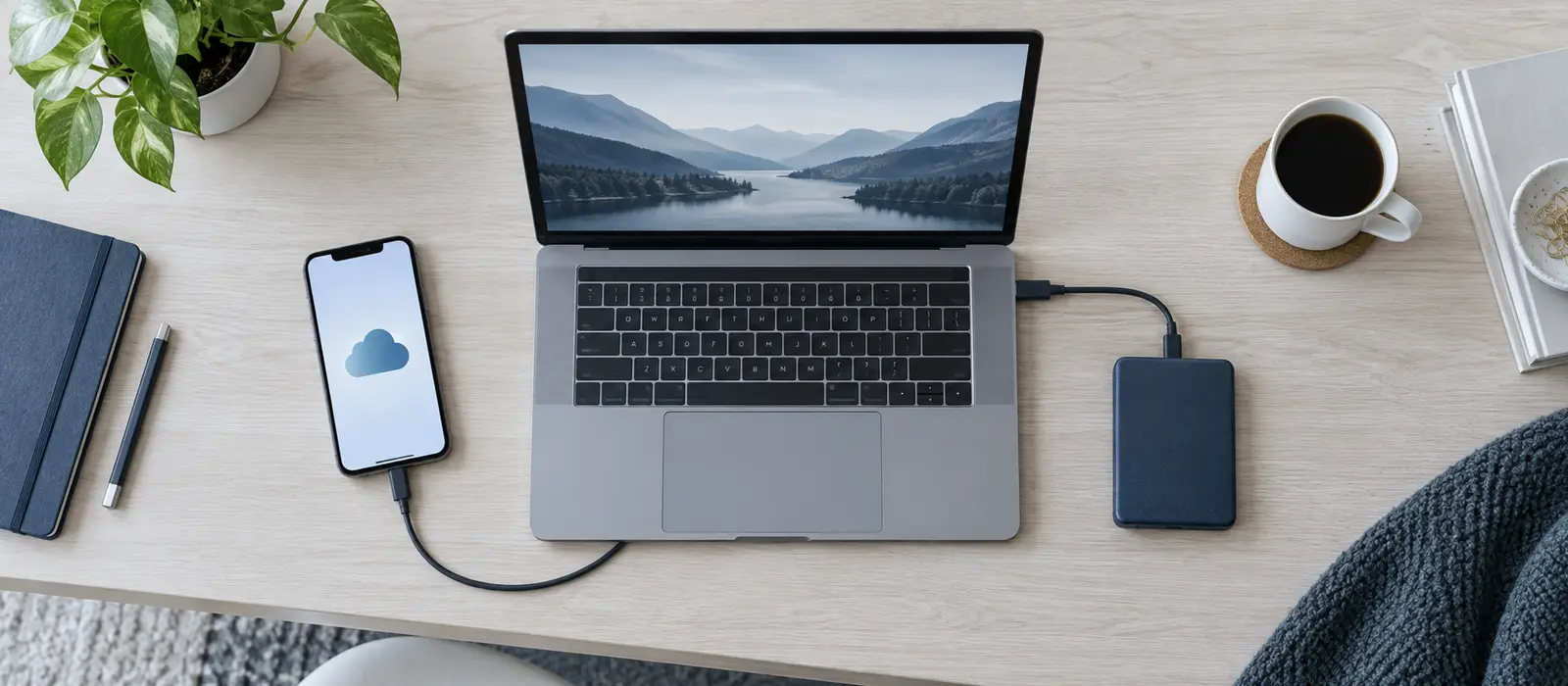
If your phone gets lost, stolen, or damaged, a complete backup means you can restore your contacts, messages, photos, and settings to a new device within minutes. Setting up automatic backups now takes just a few minutes and saves hours of frustration later.
Backing up an iPhone with iCloud
iCloud backup stores your entire iPhone—apps, settings, messages, contact details, calendars, and more—on Apple’s secure servers. To enable automatic backups, open Settings, tap your name at the top, select “iCloud,” and turn on “iCloud Backup.” Once enabled, your iPhone backs up automatically whenever it’s plugged into power, connected to Wi-Fi, and the screen is locked. How long a backup takes depends on how much data has changed since the last one, so a first backup takes longer than routine daily backups.
To manually back up immediately, go to Settings > [Your Name] > iCloud > iCloud Backup and tap “Back Up Now.” Remain connected to Wi-Fi until the backup finishes; disconnecting early may interrupt the process. You can check the backup status in the same menu to confirm completion.
iCloud backup requires sufficient storage space in your iCloud account. Every Apple account includes 5 GB of free storage, which covers most users’ needs. If you need more—especially if you have many photos—you can buy additional storage through Settings at modest monthly cost.
Backing up to a computer (Mac or Windows PC)
For users who prefer an offline backup or want complete control over where data is stored, connecting your iPhone to a Mac with a USB cable lets you back up to the computer itself. On Mac, connect your iPhone, open Finder, select your device, and click “Back up now.” On Windows, iTunes (or the newer Devices app) provides the same functionality. Computer backups are encrypted and stored entirely offline, adding security but requiring you to manually repeat the process periodically.
Backing up an Android phone
Android devices use Google’s backup system, which automatically saves your data when your phone is connected to Wi-Fi and charging. Open Settings, navigate to “Google” > “All services” > “Backup,” and ensure it’s enabled. Google backs up apps and app data, call history, contacts, device settings, and SMS and MMS messages. Like iCloud, restoration is automatic when you add your Google Account to a new Android device.
To manually trigger a backup immediately, go to Settings > Google > All services > Backup and restore > “Back up now.” Backups to Google account storage are included free, though you share storage space with Google Drive, Google Photos, and Gmail.
Backing up photos and videos separately
Although both iCloud and Google backup include photos, using a dedicated photo backup service provides an additional safeguard. Google Photos, available on both iOS and Android, automatically backs up all your photos and videos to your Google Account. Open the Google Photos app, sign in with your Google Account, tap your profile picture, select “Photos settings,” and enable “Backup.” Photos then automatically upload whenever you’re connected to Wi-Fi.
Apple provides similar functionality through iCloud Photos. Enable it in Settings > [Your Name] > iCloud > Photos and select “iCloud Photos.” Your entire photo library then syncs to iCloud and downloads on other Apple devices you own.
Using both Google Photos and your phone’s native backup system provides a redundant safeguard: even if one service has a problem, your photos remain safe elsewhere.
Backing up messaging apps
Messaging app chats are typically included in your phone’s main backup system. When you restore your phone from a backup, messaging app data restores automatically.
For additional protection, many messaging apps offer their own backup features. Check each app’s settings menu to enable cloud backup or export options. Some apps allow you to export chat history as a file that you can store separately.
What a backup does not cover
Phone backups are thorough but not complete. Here’s what typically isn’t included: financial or banking app login credentials (you’ll need to sign back in); cached media that apps temporarily store; and some device-specific settings for apps that don’t integrate with cloud services. Two-factor authentication codes, if not stored in an authenticator app, won’t restore to a new device and must be reconfigured by visiting account security settings.
Additionally, downloaded movies, music, or ebooks from streaming services won’t restore; you can redownload them using your account, but they aren’t part of the backup. For these reasons, it’s worth manually noting your important passwords and recovery codes in a secure password manager.
Restoring from a backup
When you set up a new phone, the manufacturer’s setup wizard asks if you’d like to restore from a backup. Select yes, sign in with your Apple ID (iPhone) or Google Account (Android), and choose the backup you want to restore. How long this takes depends on backup size and connection speed—larger photo libraries take noticeably longer over a slow connection. Apps, photos, messages, and settings restore automatically.
Key points
- Enable iCloud backup on iPhone or Google backup on Android for automatic protection
- Back up photos twice: use both your phone’s native backup and Google Photos for redundancy
- Messaging apps like WhatsApp back up automatically through your phone’s main backup system
- Manually back up to a computer for offline security and complete control
- Backups don’t include login credentials or authentication codes; note those separately in a password manager
- Restoring to a new phone happens automatically during setup
Related: Find IT support near you